Link
(Current scale is below 100% - zoom in to view full detail)
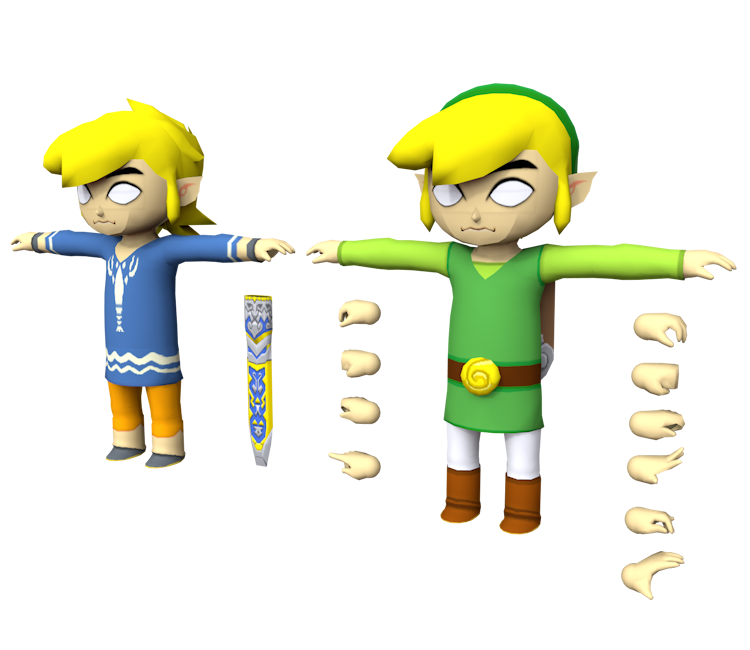
| Asset Info favorite | |
|---|---|
| Name | Link |
| Category | GameCube |
| Game | The Legend of Zelda: The Wind Waker |
| Section | Playable Characters |
| Submitted | July 23, 2014 |
| Uploaded By | Mystie |
| Contributors | Peardian |
| Size |
290.06 KB (42 items) arrow_right
|
| Format |
ZIP (application/zip) dae, png, txt |
| Hits | 82,106 |
| Tags (5): | |
Comments (12)
You must be logged in to post comments.

I always loved this style for Link, so cute

The two most common toon shader textures are stored in a separate archive, called "System".


Probably a silly question, but how did you guys get the ZBtoonEX texture in a usable format? normally when dumping these models to DAE via SuperBMD that texture is usually just a grid

“You just gotta slide through the crack in the door!”
-ScottFalco Link. (Idk voice line origin)
-ScottFalco Link. (Idk voice line origin)

For anyone wondering what's going on with his eyes, it's because of the way his eyes work in wind waker itself, what I'd recommend doing for simplicity's sake is using the SSBU method (note that this tutorial is meant for blender but it may be applicable to other software to an extent).
For those unaware here's how it works
1. You need to find the nodes that control the appearance of his eyes, they should be under a material that contains the word eye, you can easily do this by opening the shading window, opening the materials menu on the right of the screen, and scrolling through it until you find it.
2. You'll need to import the image of his pupil and one of the eye images as texture nodes, I'd recommend eye1.
Now you'll need a MixRGB node
3. Plug both textures into the MixRGB node and plug one of their alpha channels into the FAC input.
4. Plug the MixRGB node into the Base Color channel.
If you did everything right it should work.
For those unaware here's how it works
1. You need to find the nodes that control the appearance of his eyes, they should be under a material that contains the word eye, you can easily do this by opening the shading window, opening the materials menu on the right of the screen, and scrolling through it until you find it.
2. You'll need to import the image of his pupil and one of the eye images as texture nodes, I'd recommend eye1.
Now you'll need a MixRGB node
3. Plug both textures into the MixRGB node and plug one of their alpha channels into the FAC input.
4. Plug the MixRGB node into the Base Color channel.
If you did everything right it should work.

What's going on with his eyes?

HEAUGHT!

I absolutely love the rig on this one.
lonk Pennsylvania

I have had some texture issues with the eyes, but otherwise great model!
Thanks!
O_O